

Authorized domains
Restrict your API keys to a whitelist of domains to prevent third-party usage.
An authorized domain is a hostname from which your API keys are allowed to be used. The check
happens on every request by comparing the Origin then Referer headers against the list of
domains linked to the key.
Create an authorized domain
- Sign in to app.tmaps.tn.
- In the sidebar, click Authorized Domains.
- Click Add Domain.
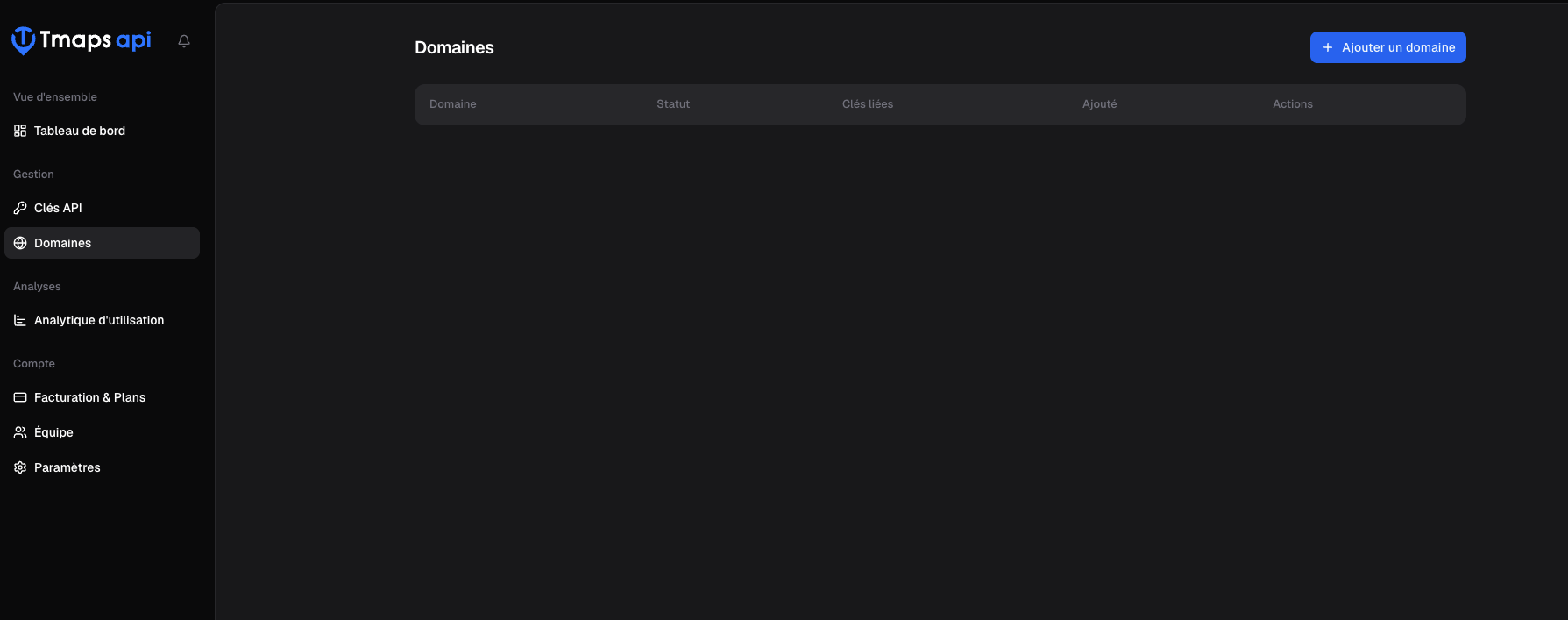
-
Enter the domain name without scheme or path:
- ✅
mysite.tn - ✅
app.mysite.tn - ✅
localhost - ❌
https://mysite.tn - ❌
mysite.tn/dashboard - ❌
*.mysite.tn(wildcards not supported)
- ✅
-
Click Add.
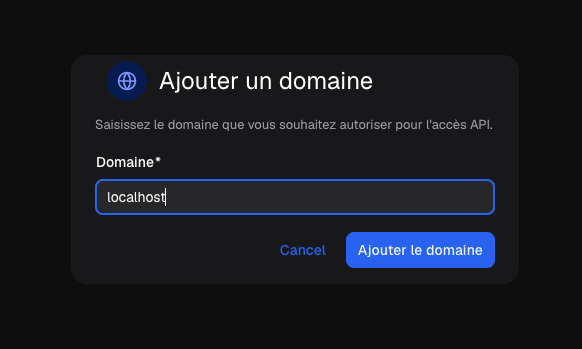
No wildcards
Domain checks are strict. To allow several subdomains, add each one separately
(app.mysite.tn, admin.mysite.tn, …).
Localhost in development
For local development, explicitly add localhost (and 127.0.0.1 if you
use it) to your list — otherwise calls will be rejected with 403 until you ship
to production.
Link a key to one or several domains
Once your domains are added, you must link them to the relevant keys. You have two ways:
From the key’s screen
- Open API Keys then click on the key.
- In the Authorized Domains section, click Link domain.
- Pick the domains to authorize for that key and confirm.
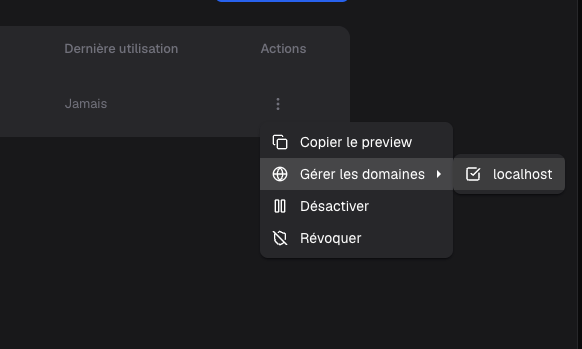
From the domain’s screen
- Open Authorized Domains then click on the domain.
- In the API Keys section, click Link key.
- Pick the keys to associate and confirm.
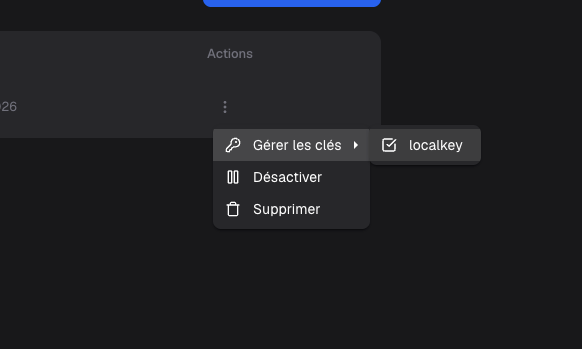
N : N model
Keys and domains are linked in an N : N relationship:
- One key can be authorized on several domains (e.g.
mysite.tn,app.mysite.tn,localhost). - One domain can be authorized for several keys (e.g. your prod and staging keys both
use
app.mysite.tn).
When to use multiple keys on a single domain?
This lets you have short-lived keys (rotation, A/B testing) sharing the same domain list, or isolate consumption across teams / products on the same site.
Runtime behavior
For each request authenticated by a key with at least one linked domain, the backend:
- Reads the
Originheader. If present and listed in the authorized domains → request passes. - Otherwise, reads the
Refererheader. If present and listed → request passes. - Otherwise, the request is rejected with status 403:
{"error":"domain not authorized"}.
Special case — server-to-server calls (Node, PHP, mobile native…): neither Origin nor
Referer is sent. In that case, the domain list is ignored and the key works without
restriction. See Authentication for details.
Unlink or delete a domain
- Unlink from a key: open the key, then click the
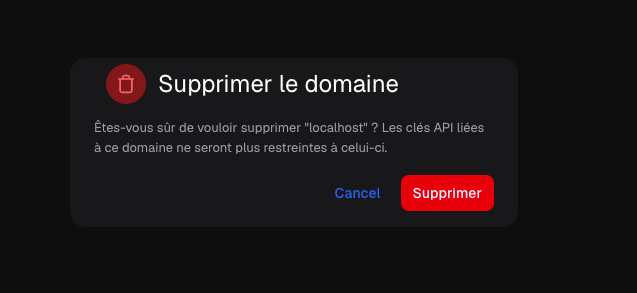
×icon next to the domain in the Authorized Domains section. The key remains active but won’t work from that domain anymore. - Delete a domain: open Authorized Domains, click the domain, then Delete domain. The domain is unlinked from all keys at once.
Best practices
- Restrict browser-exposed keys as soon as you create them — don’t wait for a leak.
- Separate prod and dev: in prod list only your real domains; in dev use a dedicated key with
localhostadded. - For mobile / backend, create a separate key with no domain at all: the whitelist
doesn’t apply (no
Origin/Referer) and that’s clearer than manually listing the absence of check. - Audit regularly the key ↔ domain links: remove obsolete domains to reduce attack surface.