

Manage API keys
Create, disable or revoke your API keys from the TMaps console.
An API key is the unique identifier that authenticates your requests against TMaps endpoints. This page explains how to create it, disable it and revoke it from the console.
Create a key
- Sign in to app.tmaps.tn.
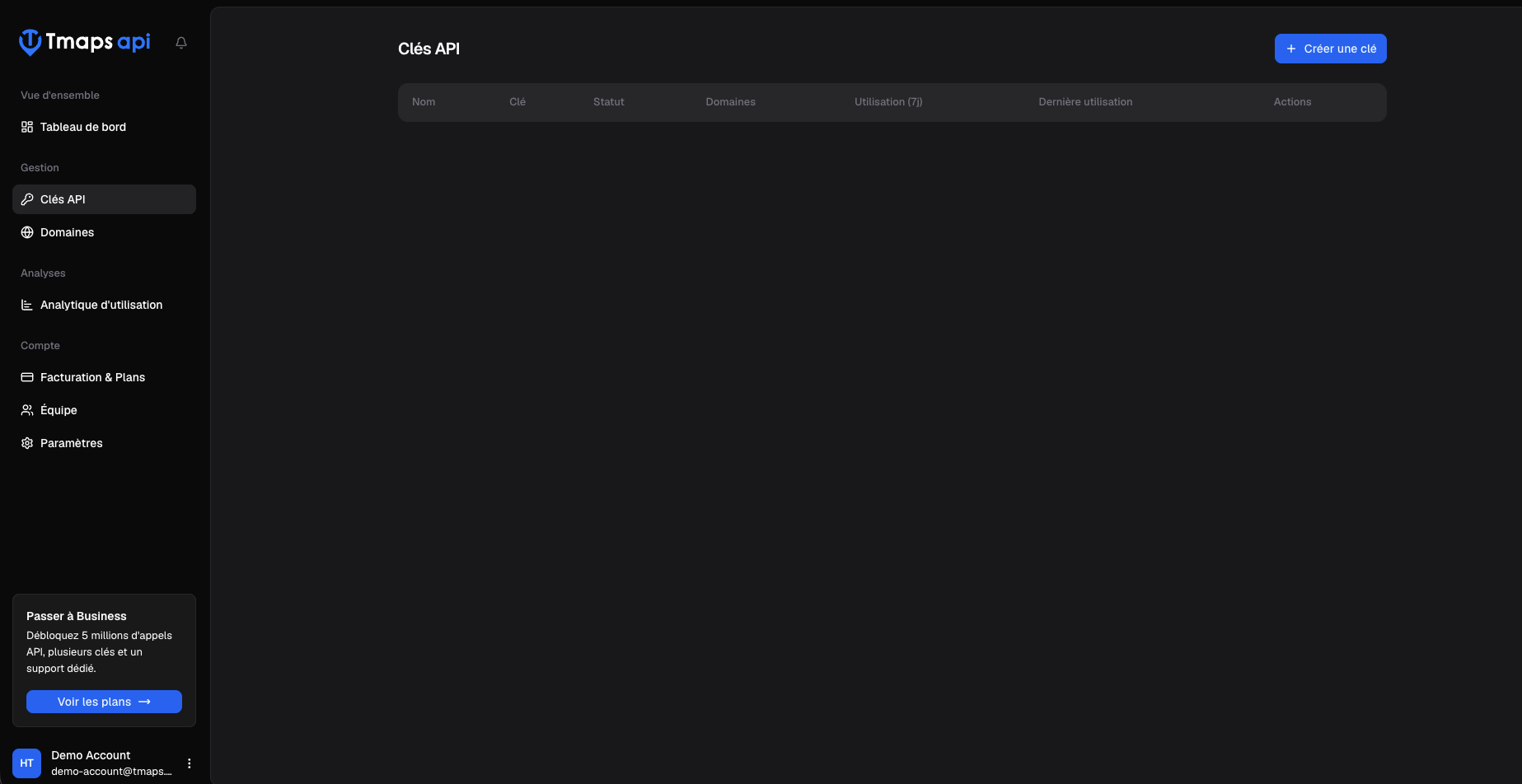
- In the sidebar, click API Keys.
- Click the Create API Key button at the top right.
- Give the key a name (e.g. Production frontend, Mobile app iOS). The name has no technical impact but makes management easier as you accumulate keys.
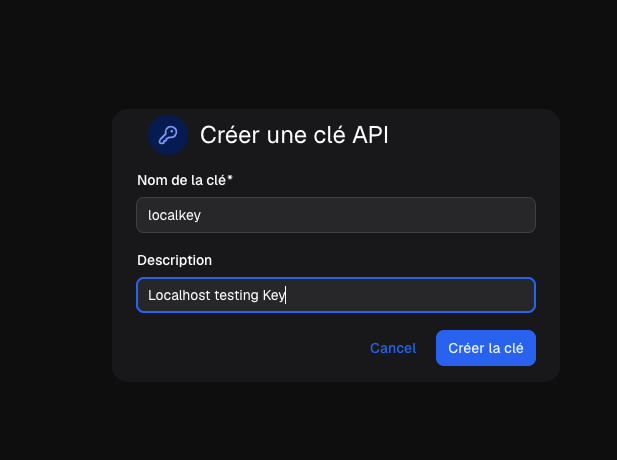
- Click Create. The key appears immediately in
ak_…format.
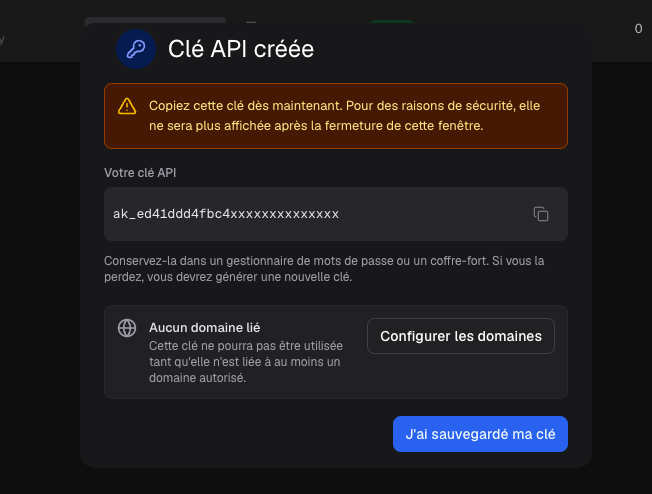
Copy this key right now
For security reasons, it will not be shown again after this window is closed.
Store it in a password manager, a vault or your .env file.
If you lose it, you’ll have to generate a new key.
This is the value you’ll pass via api_key on every request.
List of keys
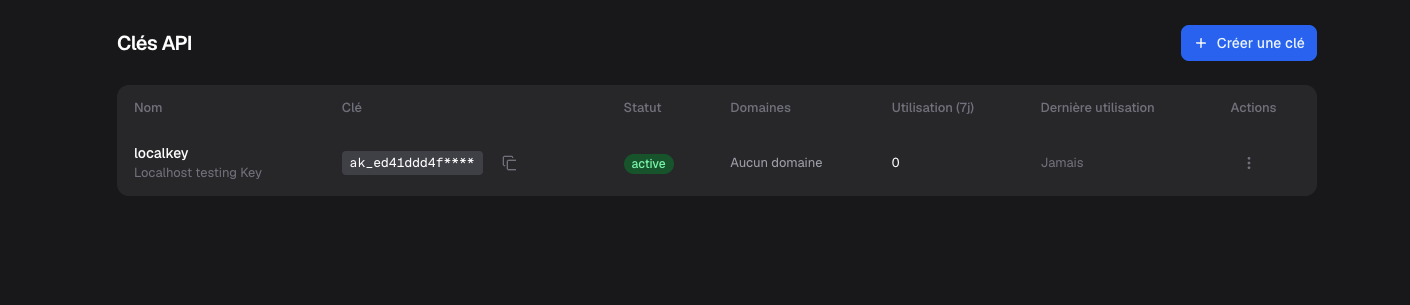
All your keys are visible from the API Keys tab. Each row shows:
- Name of the key
- Prefix (the first characters of the key) so you can identify it without exposing it fully
- Status: Active, Disabled or Revoked
- Creation date
- Linked domains (summary)
Disable a key
Disabling temporarily suspends use of the key: any call returns 401.
The key can be re-enabled at any time.
- In the list, click the three dots (
⋮) at the end of the row. - Choose Disable.
- Confirm. The status switches to Disabled.
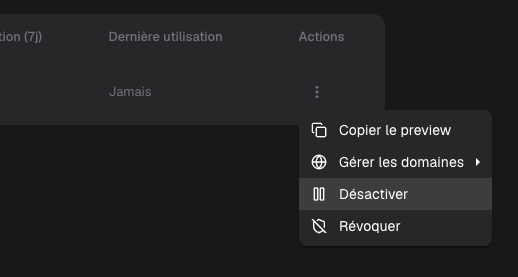
To re-enable, open the same menu and click Enable.
Revoke a key
Revocation is permanent: the key cannot be re-enabled. Use it when:
- the key has leaked publicly,
- you’re decommissioning the project that used it,
- you’re cleaning up after a key rotation.
- In the list, click the three dots (
⋮). - Choose Revoke.
- Type the key name to confirm.
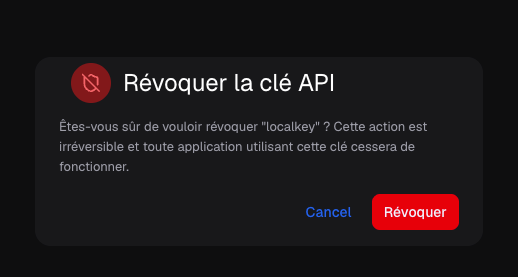
Revocation is irreversible
Once revoked, the key is permanently marked Revoked and cannot be regenerated. Create a new key to replace it if needed.
Best practices
- One key per environment: dev, staging, production.
- One key per usage: frontend (with strict domains), backend (no domain), mobile (no domain).
- Rotate keys regularly: create the new one, deploy, then revoke the old one.
- Monitor usage from the Usage tab to spot abnormal spikes.
Next step
To secure a browser-exposed key, attach authorized domains to it: